# Third-Party Integrations: Algolia
Use Algolia Search as the system [search driver](Search+Configuration).
## Activate or Deactivate Integration
The Algolia integration is disabled by default and needs to be activated before use.
1. Visit **Settings -> General -> Third-Party Integrations**.
2. Find the Algolia integration and click the "Activate" link located on the left of the table.
3. The page will reload confirming the integration has been activated.
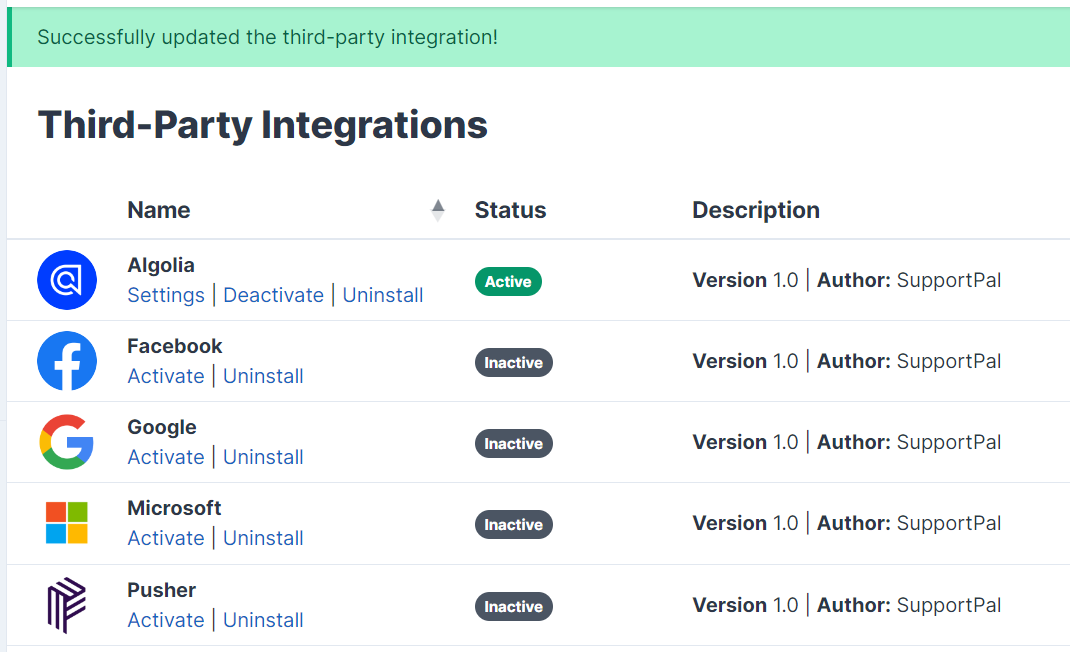
The integration can be deactivated by following the above process, but using the "Deactivate" link instead.
### Integration Settings
1. Create a **free** [Algolia account](https://www.algolia.com/users/sign_up) if you don't already have one.
2. Sign in to your [Algolia account](https://www.algolia.com/users/sign_in).
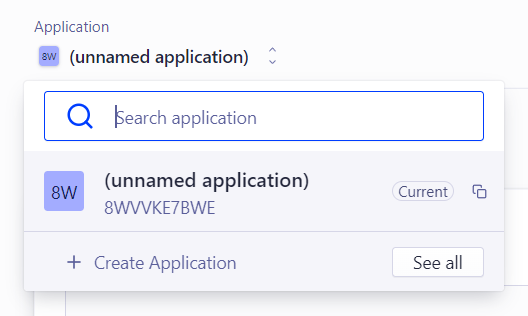
3. If you have just created an account, Algolia will automatically create an app for you. Otherwise, click the application section in the top left and click 'Create Application'.
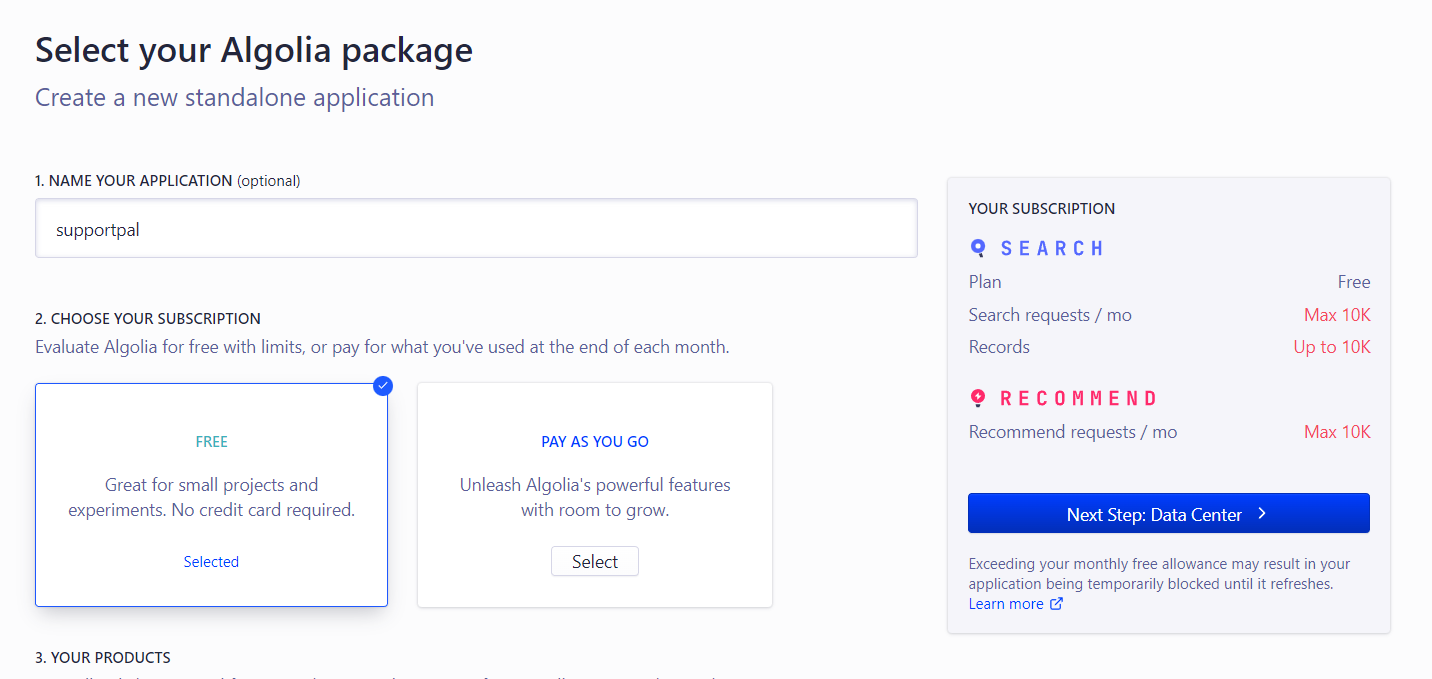
4. If you are creating an application, set a name for it. Follow through the rest of the application setup. You can choose the free option unless you already have over 10,000 tickets, ticket messages, users, articles and more, then you will need to use the pay as you go option.
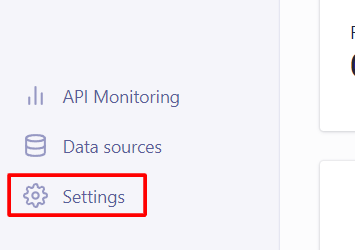
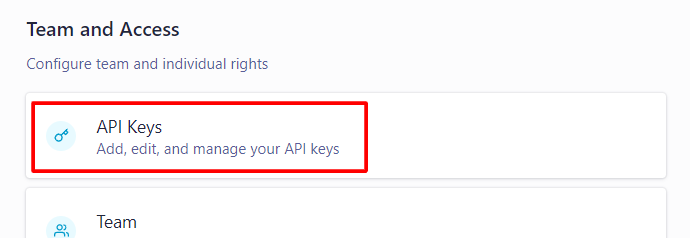
5. Once the application is created, click Settings at the bottom left and then API Keys.
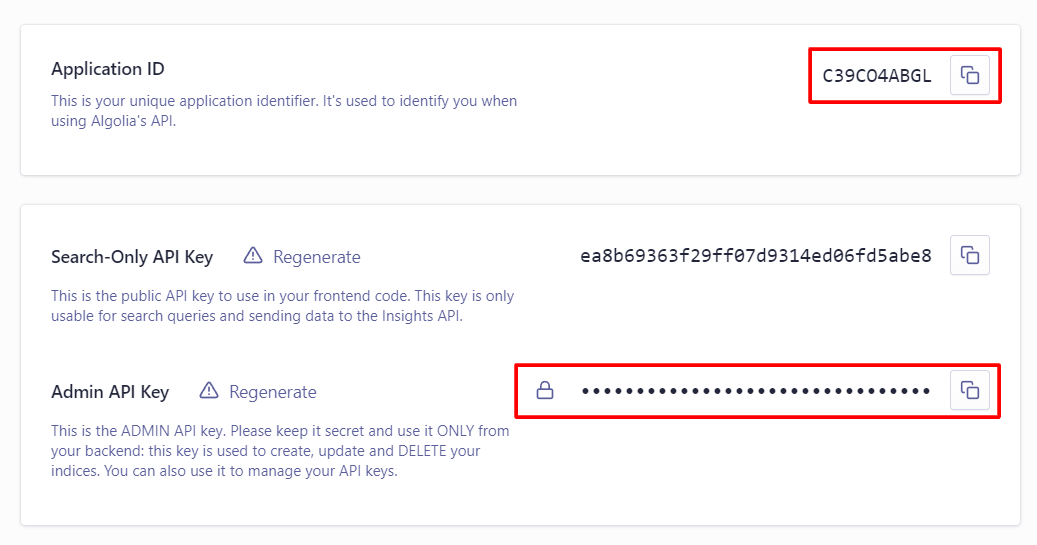
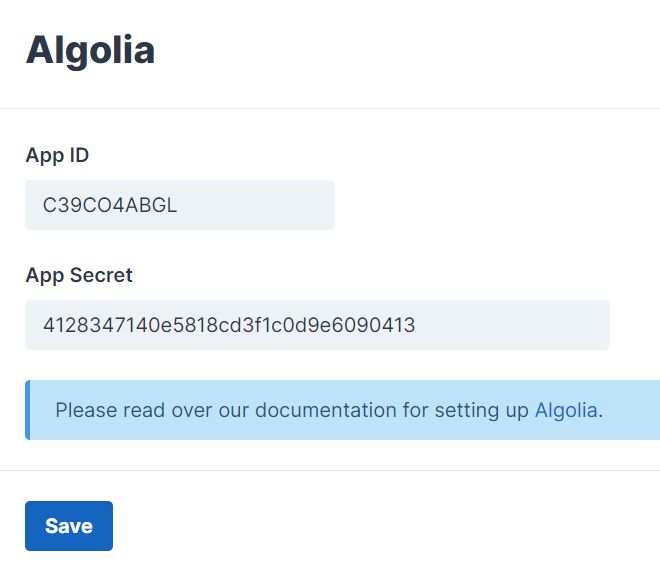
6. In SupportPal, click 'Settings' under Algolia, enter the application ID for App ID and Admin API Key for App Secret, then hit 'Save'.
7. The system will automatically attempt to index existing models afterwards. It can take time to run through all data as it does it in batches of 500 records.
#### Setting Rate Limits
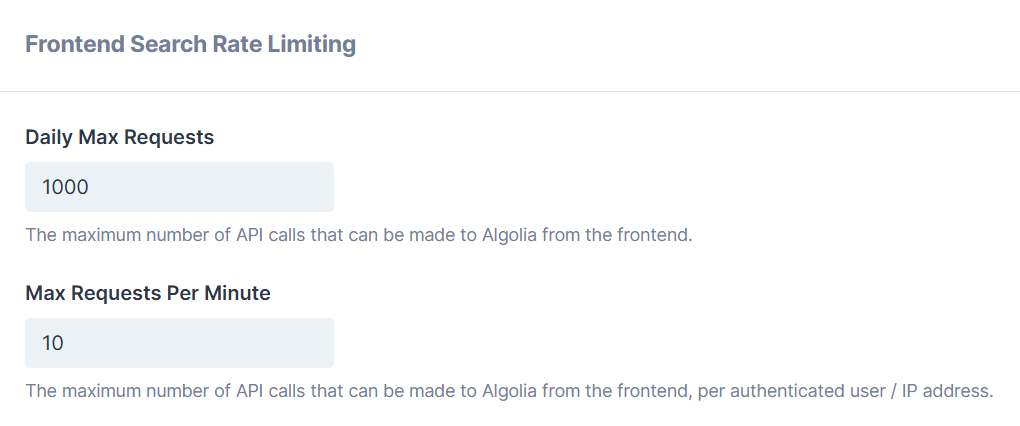
As Algolia pricing is request-based, there is rate limiting on the frontend search to avoid potential abuse. This defaults to a maximum of **1000** requests a day by all users and **10** requests per minute by a specific user. These limits can be adjusted in the integration settings.
The operator search is not rate limited.