You're browsing the documentation for an old version of SupportPal. Consider upgrading to the [latest version](https://docs.supportpal.com/current/System+Update).
# System Update
System update enables you to safely and easily update your help desk via the operator panel, without needing to manually download the update or upload any files.
If your deployment is running on Docker, you must update the system using [these steps](Upgrade+Guide#docker).
## Requirements
The system update tool requires several components to function:
- The [cron job](Scheduled+Tasks) must be configured.
- The `disable_functions` php.ini directive must not be set. System update makes use of functions such as `proc_open`, `exec` and others.
- The following CLI applications must be installed on the server: `mysqldump`, `tar`. They will be searched for via the `PATH` environment variable.
## Configuration
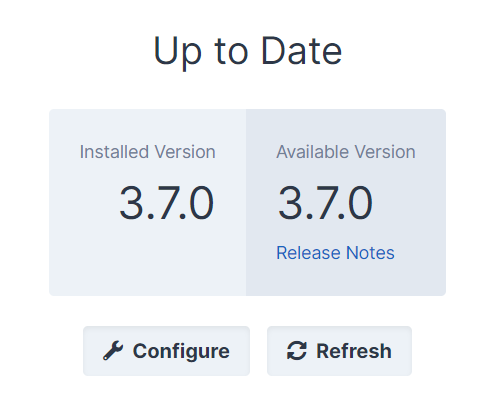
If the system update tool is unable to find CLI applications itself, you can use the `Configure` button to specify the absolute path to each binary. For example, you could set the `tar` path to `C:\Program Files\Git\bin\tar.exe`. Leave the fields empty if you want the tool to look for the applications by itself.
## Updating
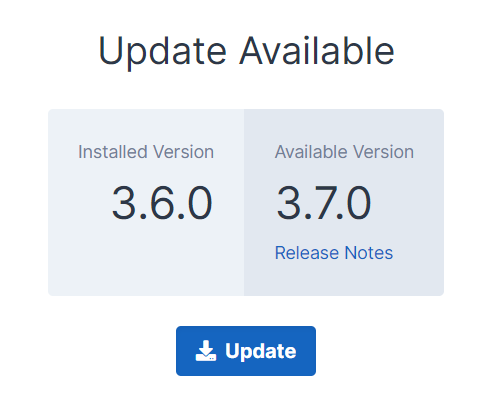
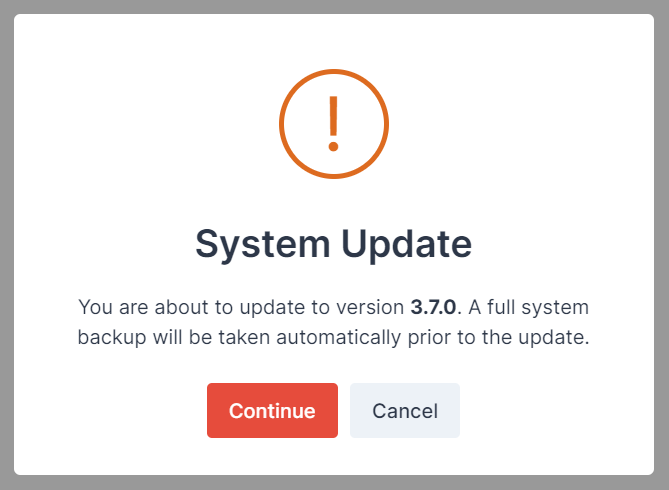
If a new version is available for your license, press the `Update` button, confirm the popup that shows and then it will start automatically in the background.
### How It Works
1. Once the `Update` button has been pressed, an update is scheduled and will be picked up by the next run of the cron job.
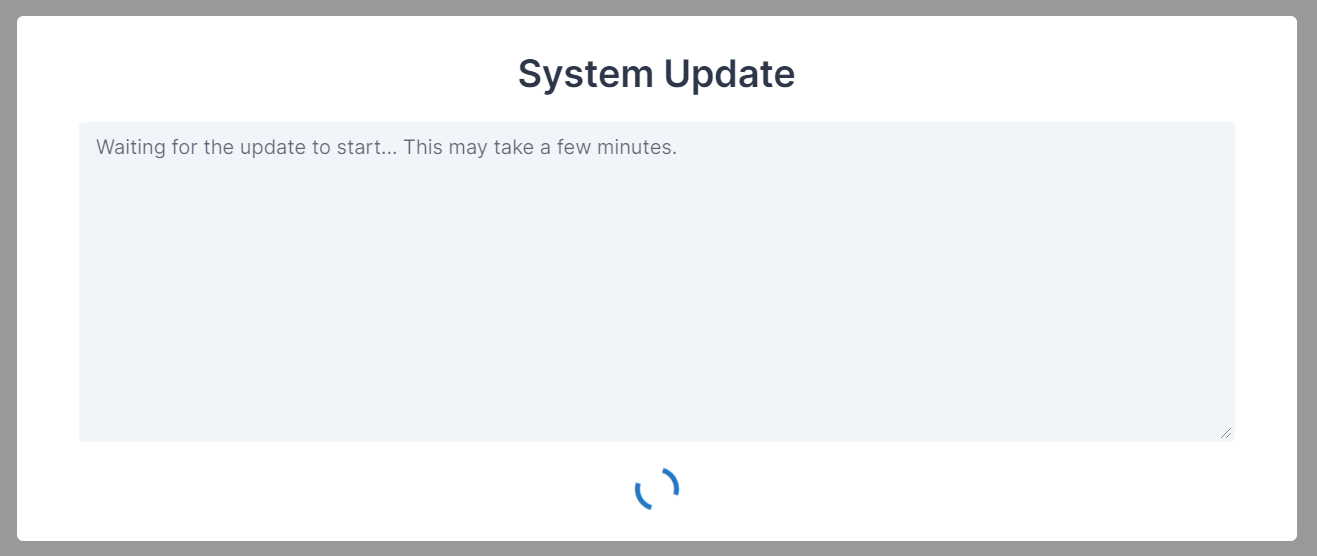 It may take a minute or two before this happens so please sit tight. No changes are made to the help desk during this wait period.
2. The cron job will open a process to run the `app:update` command. The output of that process will be streamed directly to your browser window.
For more information on how the internal workings of the command, see [how it works](App+Update+Command#HowItWorks).
3. If the update completes successfully, the spinning icon at the bottom of the modal will change to a `Continue` button. When the button is pressed, the page will refresh and you'll be using the new version of SupportPal.
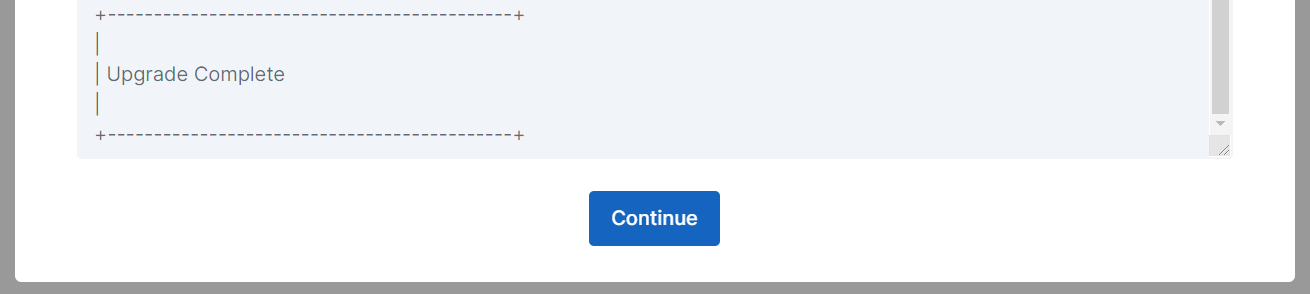
4. After the `Continue` button is pressed, the page will refresh and you'll be using the new version of SupportPal.
## Troubleshooting
The update command tries it's best to identify failure scenarios via pre-flight checks. In the unfortunate event that the update fails to complete successfully, manual intervention is required to rectify the situation. A full backup of your help desk is always created before any changes are made to the files within the installation directory. See [Backup and Restore](Backup+and+Restore#Restore) for details on how to safely restore your help desk.
### Update never starts or fails midway through.
The `update.log` log file is only available when running system update after you are already on version 4.0.3.
If the screen gets stuck on "Waiting for the update to start...". We suggest first reviewing the application log file for today, accessible at Utilities -> Logs -> Log File Manager or /storage/logs/ on the filesystem. If the update has started, there should also be an `update.log` file under /storage/logs, which you can review for a full log of the update progress.
### The cron job must be running to use this function.

This error will show at the top of the page if the cron job is not deemed to be running. Please ensure the [cron job is configured correctly](Configuring+the+Cron), and verify it is showing as running on the Settings -> General -> Scheduled Tasks page.
### The support and updates on your license have expired.

If you have an owned license and your support and updates have expired, you will need to renew in order to be able to access the latest releases of SupportPal. Click the button to order your renewal and then hit the refresh button to update the page.